How to Show or Hide Reflection Notes in ARPEDIO Sales
Reflection Notes are available at both the assessment area level and the assessment topic level. By default, any user with the ARPEDIO Sales User permission set can read and edit these notes.
To restrict access, you can clone the permission set and adjust the field permissions on the notes fields.
Restricting Access to Reflection Notes
- In Setup, go to Permission Sets and open the ARPEDIO Sales User permission set.
- Clone the permission set and give it a new label and API name to distinguish it from the original.
- Click Save, then open the cloned permission set.
- Go to Object Settings and select ARPEDIO Assessment.
- Locate the comments fields and adjust the read and edit permissions according to the access level you want to grant.
- Click Save.
- Assign the new permission set to the relevant users in place of the standard ARPEDIO Sales User permission set.
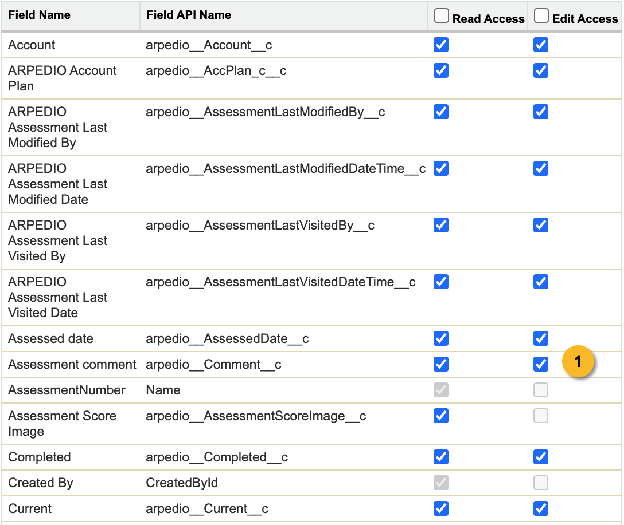
Note: The Reflection Notes fields are located on the ARPEDIO Assessment object. Any changes to field permissions on this object will apply across all assessments in your org.
Was this article helpful?