How to Create Suggested Actions for a Sales Template
The Action Plan feature lets you coach sales reps by suggesting concrete next steps based on how they have answered the assessment. Action Plans are configured within the Sales Template, under the Action Plan tab.
Note: If you are working from a best practice template, you can edit existing Focus Areas and Actions using the blue edit icons, or delete any that are not relevant to your organization.
Understanding the Structure
Action Plans are organized into two levels:
- Focus Areas are broad thematic groupings that act as an umbrella for a set of related actions. They narrow the focus without being prescriptive on their own.
- Actions are the specific, executable tasks suggested to the sales rep based on how they have answered the assessment.
Creating a Focus Area
- Navigate to the Action Plan tab within your Sales Template.
- Click Add Focus Area and enter a name.
- Click Save.
Creating an Action
- Within a Focus Area, click to add a new action.
- Enter a name for the action. Actions should be specific, practical, and executable.
- Click Save.

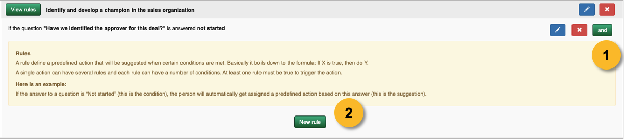
Creating Rules for an Action
Rules define when an action appears and when it disappears based on assessment answers.
- Within the action, click New Rule.
- Select the question and the answer value that should trigger the action to appear.
- Click Save.
You can add multiple rules to a single action using AND or OR logic:
- AND requires all specified conditions to be met before the action appears.
- OR requires at least one of the conditions to be met.
Both operators can also apply to the same question, for example an action that appears when a question is answered either X or Z.
Was this article helpful?